Create Test Plan
A Test Plan is used to organize and group related test cases for execution. It defines the testing scope, objectives, and timeline for a specific feature or release. Test Plans enable structured execution and help teams track progress effectively.
1. Accessing Test Plans
To create a new test plan:
- Open your project
- Navigate to the Test Plans module from the top menu
- Click Create Test Plan on the right side of the page
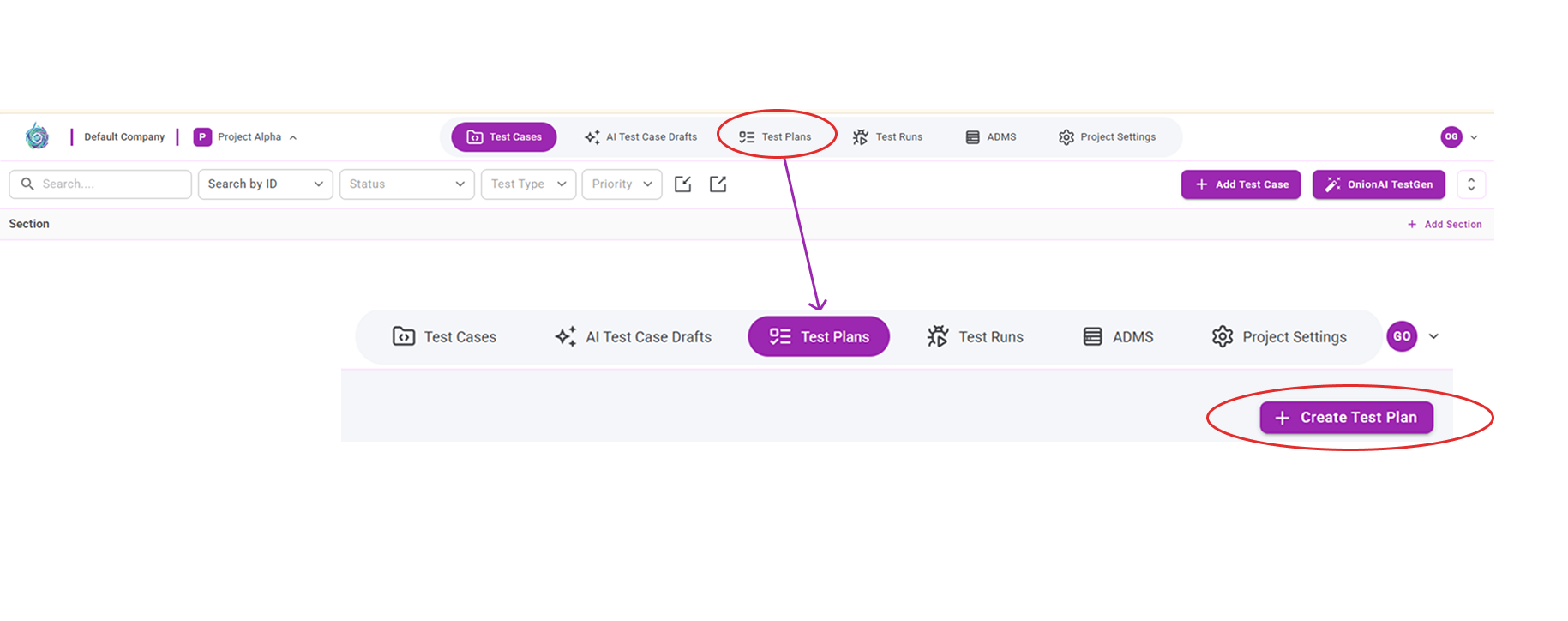
This opens the test plan creation window.
2. Create Test Plan Fields
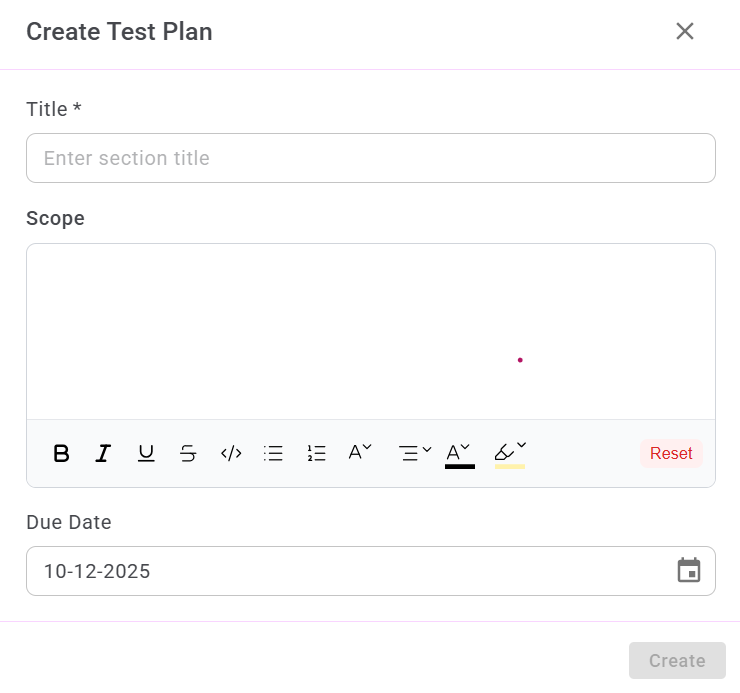
The Create Test Plan modal contains the following fields:
Title *
Enter a meaningful name for the test plan.
This field is required.
Example:
Release 1.0 – Regression Test Plan
Scope (Optional)
Describe what the test plan covers, such as modules, objectives, and acceptance goals.
Example:
This plan includes regression scenarios for Login, Dashboard, and User Profile modules.
Due Date (Optional)
Select the expected completion date for executing all test cases in this plan.
Example:
08-12-2025
3. Creating the Test Plan
After entering the details:
- Ensure the Title field is provided
- Optionally enter the Scope and Due Date
- Click Create.=
If the Title field is empty, the Create button remains disabled.
Once created successfully, the test plan appears in the Test Plan list with:
- Plan name
- Scope summary
- Due date
- Last run information
- Completion progress
4. After Creating a Test Plan
Once a test plan is created, you can:
- Add test cases to the plan
- Organize test cases by priority
- Assign testers
- Execute the plan as a Test Run
- View detailed execution reports
This ensures structured and traceable testing cycles.